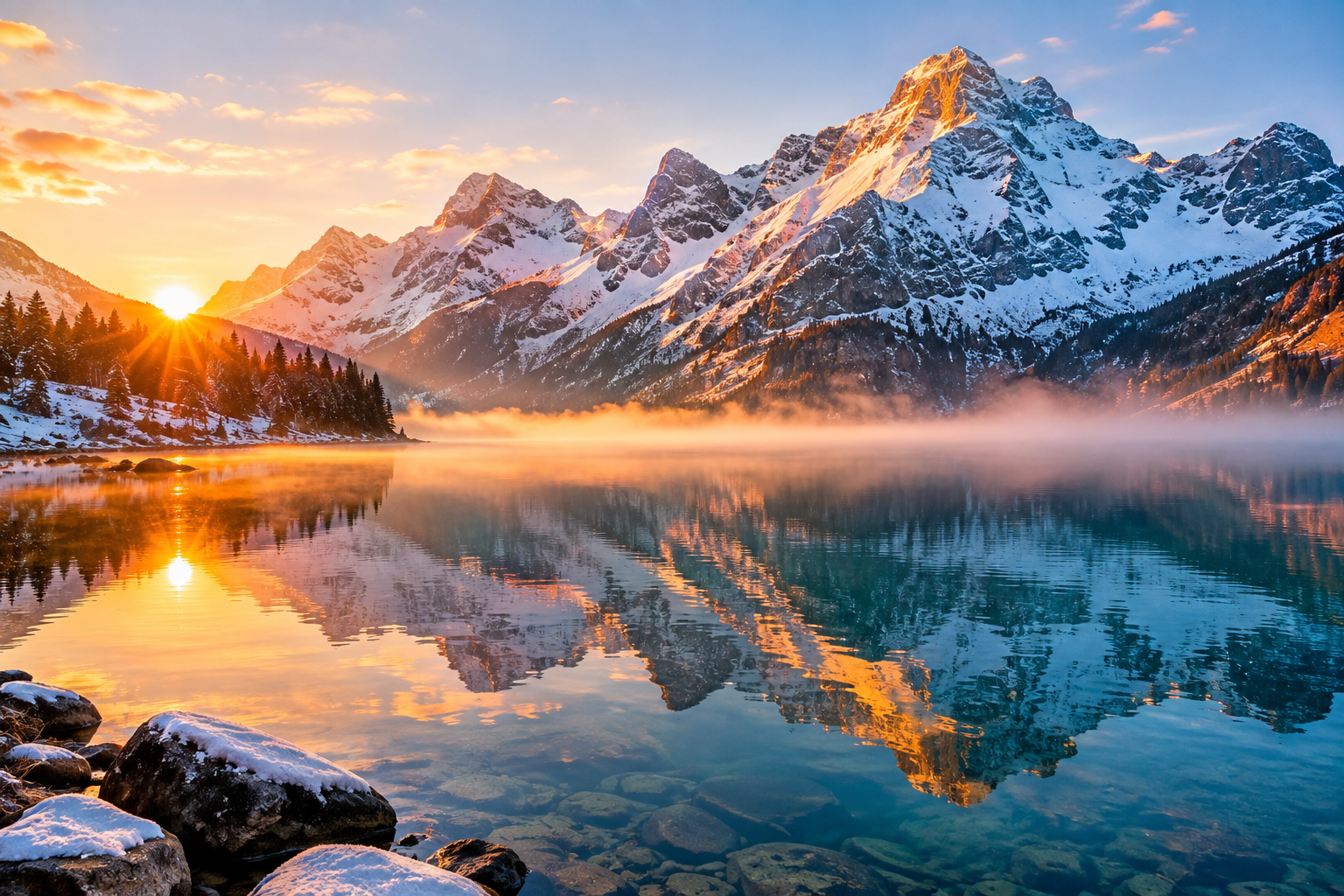
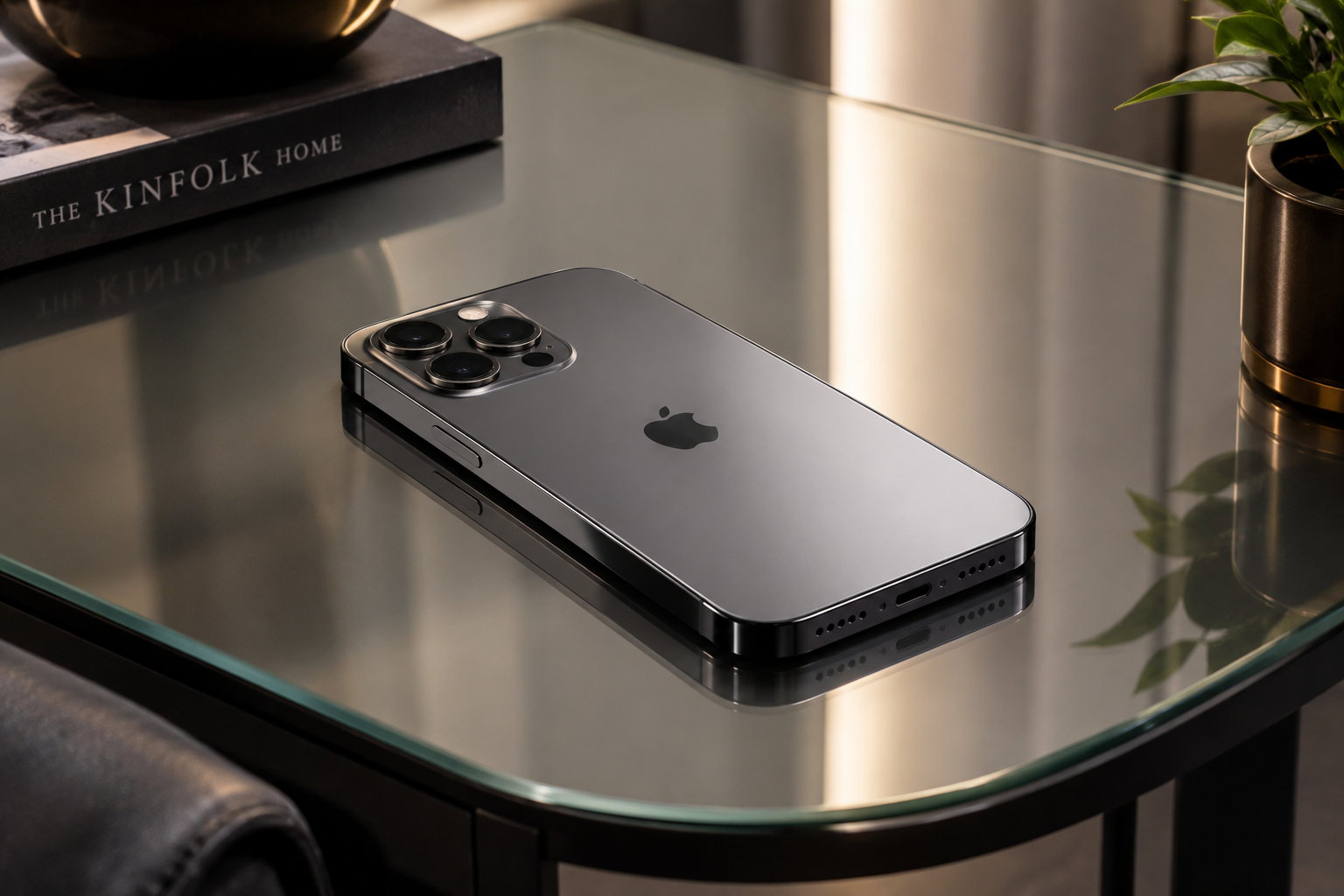
Step into the future of visual creation. Describe any scene, style, or mood, and QuickGenAI's ImgPro transforms your words into stunning imagery in seconds — completely free.


Describe any scene, style, or mood — our AI translates your vision into breathtaking visuals.
If you create content in any form, you already know the pain of finding the right image. Stock photo sites want a subscription, free ones are full of pictures everyone has already seen, and hiring a designer for every blog thumbnail or Instagram post is simply not practical when you are working solo. I felt this problem myself while running my blog and my YouTube channel, and that is a big reason I built ImgPro.
ImgPro is a free AI image generator that lives inside QuickGenAI. You type what you want to see, pick a style, and get an image in a few seconds. No account, no card details, no "you have used your 3 free credits" popup. In this guide I will walk you through everything the tool does, how to get good results from it, where it fits in a creator's workflow, and, just as important, where its limits are.
ImgPro is a text-to-image tool. That means you describe a picture in plain language, and an AI model draws it for you. It runs on QuickGenAI's own model, currently called img-flash v0.1. The "v0.1" is honest labelling: this is an early version, and I would rather tell you that upfront than oversell it. It is fast, it understands prompts reasonably well, and it will keep improving.
You can find it at quickgenai.in/ai-tools/imgpro, and it works straight from your browser on a phone or a laptop. Nothing to install.
Instead of making you write long style instructions every time, ImgPro has a dropdown of presets:
There is also a Default option if you would rather let the model decide.
Size matters more than people think. A great image in the wrong shape is useless. ImgPro gives you:
Since I make YouTube Shorts myself, the 9:16 option is the one I use most.
Once an image is generated, you can download it to your device in full quality. No watermark is stamped on it. That matters if you are putting it into a video or a blog post and do not want to crop around someone else's logo.
Every image you generate is saved to a personal gallery in the tool, so you can come back, browse, and download again without regenerating.
The tool is free, there is no login, and there are no daily generation caps. You can experiment as much as you want. Generation speed can vary a little depending on how complex your prompt is and how busy the server is at that moment.
QuickGenAI states that it does not store or share your prompts or generated images on its servers. I would still suggest the usual common sense: do not type anything personal or confidential into any online tool.
The process is deliberately simple.
That last part is the real secret. Almost nobody gets the perfect image on the first try, and that is normal. Think of generation as a conversation: you try, look, adjust one thing, and try again.
This is where most beginners lose out. A prompt like "a girl" will give you something generic. A prompt with context gives the model something to work with. A simple formula I follow:
Subject + setting + lighting or mood + extra details
Here is the difference in practice.
Weak prompt: A tea stall.
Better prompt: A small roadside chai stall in a North Indian town at early morning, steam rising from a kettle, warm golden sunlight, a few clay cups on a wooden counter, calm and nostalgic mood.
Same idea, but the second one tells the AI where we are, what time it is, what the light feels like, and what small objects to include.
A few habits that help:
Styles behave differently, so matching the style to the job saves a lot of retries.
Photorealistic works best for product-style scenes, food, landscapes, and lifestyle imagery. Good for blog featured images.
Digital Art is a safe all-rounder for thumbnails, covers, and concept visuals where you want something polished but not photographic.
Anime suits character-based visuals, story posts, and fan-style artwork.
Oil Painting and Watercolor are great for quotes, festive greetings, wall-art ideas, and anything that should feel artistic and warm.
Cyberpunk is perfect for tech content. If you write about AI, gadgets, or the future, neon cities and glowing machines fit your theme naturally.
3D Render works for icons, mascots, product mockups, and clean object visuals.
Sketch is useful for explainer-style visuals, storyboards, and a hand-drawn look.
A tip: run the same prompt in two or three styles. You will often be surprised which one suits your idea best.
Here is where the tool becomes genuinely useful rather than just fun.
Blog featured images. Every article needs a header. Generate a 16:9 image that matches your topic and you can skip the stock photo hunt.
YouTube thumbnails and backgrounds. Create a striking base image in 16:9, then add text on top in your editor of choice.
Shorts, Reels, and Stories. Use the 9:16 ratio for vertical backgrounds, intro visuals, or B-roll style scenes for your videos.
Social media posts. Square images for Instagram and Facebook, quick to produce when you are posting daily.
Festive and greeting designs. Diwali, Holi, Eid, Christmas, birthdays. Describe the scene you imagine and get a custom visual rather than the same forwarded image everyone has seen.
Presentation visuals. Students and professionals can use 4:3 or 16:9 images to make slides look less boring.
Mood boards and idea testing. Before you spend money on a photoshoot or a designer, use AI images to explore concepts and colours quickly.
Small business creatives. Shop owners and freelancers can create banners, background art, and promotional visuals without a design budget.
I want this guide to be useful, so here is the straight talk.
Yes. There are no subscriptions, hidden charges, or daily generation limits.
No. Open the page, type a prompt, and generate.
Usually a few seconds. It can be slower for complex prompts or when many people are using the server.
Yes, directly to your device, in full quality and without a watermark.
Please check the site's Terms and Conditions first, then decide based on your own use case.
According to QuickGenAI, prompts and generated images are not stored or shared on its servers.
ImgPro will not replace a professional photographer or a skilled illustrator, and it is not trying to. What it does is remove the friction between an idea in your head and a usable image on your screen. For bloggers, YouTubers, students, and small business owners who just need a decent visual quickly, that is a real saving of time and money.
The best way to understand it is to try it. Open ImgPro, start with a prompt about something you actually care about, and spend ten minutes experimenting with different styles and ratios. You will learn more from that than from any guide, including this one.
Article 2 html QuickGenAI AI Tools: A Practical Tour of 20+ Free Tools for Writers, Creators, Marketers and Developers By Mayank | QuickGenAIMost people's first experience with AI tools goes something like this: you open one tab for a chatbot, another for an image generator, a third for a code helper, and a fourth for something that promised to write your meta descriptions. Before long you have a dozen bookmarks, three half-finished logins, and no clear idea which tool is for what.
That mess is exactly why I put the QuickGenAI tools page together. It is one place with more than twenty browser-based tools, grouped by the kind of work you are trying to get done. This guide is a proper walkthrough: what is there, who each group is for, how I would combine them in real projects, and what to keep in mind before you rely on them.
You can find the collection at quickgenai.in/ai-tools.
The page is built around one simple principle: start with the task, then find the tool. You are not supposed to read about AI models or compare features. You think "I need a title for this video" or "I need to fix this error," and you go to the matching tool.
The workflow is the same everywhere:
There is nothing to install. Everything works from the browser, on a laptop or a phone.
One honest note before we go further. Each tool has its own page, and access rules, limits and data handling can differ from tool to tool. The main page says this clearly, and I would rather repeat it here than hide it: check the individual tool page and the Privacy Policy before putting anything sensitive into any of them.
The tools are split into five groups: AI and Chat, Writing and Content, SEO and Marketing, Image and Creative, and Developer Tools. Let me go through each one.
This group is for conversation-style help.
A small caution on the last three: they are useful for reflection and ideas, but an AI chat is not a therapist, a doctor or a replacement for a real mentor. If you are going through something serious, talk to an actual person.
This is the busiest group, and the one I use most as a blogger.
My advice for this group: treat the output as a first draft, never a final one. AI is quick at structure and wording, but it does not know your voice, your audience or your personal experience. Add your own stories, edit the rough parts, and the result will feel like you wrote it, because you did.
If you run a website, channel or small business, this group saves real time.
These tools are best for options, not answers. Ask for several versions, then pick the one that sounds most natural and honest. A title that over-promises may get a click, but it will lose the viewer a few seconds later.
ImgPro is the image generator. You describe a scene, choose a style and an aspect ratio, and it creates an image from your text prompt. It is handy for blog headers, thumbnails, social posts and idea testing. It has its own detailed guide, so I will not repeat everything here.
This group is for people who write code, or are learning to.
A rule I follow with any AI-generated code: read it before you run it, and test it. These tools are good assistants, but you are still the one responsible for what ends up in your project.
Bloggers and writers. Idea Generator, Blog Writer, Title Writer, Meta Description Writer and FAQ Writer cover most of the content pipeline.
YouTubers and short-video creators. Hook Writer, Script Writer, YouTube Title Writer and ImgPro cover the idea, the opening, the script, the title and the thumbnail art.
Students. The General AI Chatbot, Code Explainer and Career Coach are useful for understanding topics, learning programming and thinking about the future.
Freelancers and small business owners. The E-Mail Writer, FAQ Writer, SEO tools and image generator help you look more professional without a big team or a big budget.
Beginner developers. Code Explainer, Code Debugger and SQL Generator are like having a patient helper next to you while you learn.
Individual tools are fine, but they become far more useful when you chain them. Here are three ways I would combine them.
The tools are different, but the habits that improve results are the same.
I want this page to be useful rather than hype, so here are the limits.
Tools for AI chat, writing and content, SEO and marketing, image creation and development work.
No. The tools run in your browser.
It can vary by tool, so check the page of the tool you want to use.
Practices can differ between tools. Read the tool's information and the Privacy Policy before submitting anything sensitive.
Use the Contact page and include the tool name and a clear description of the problem. That makes it much easier to fix.
AI tools are most useful when they remove the boring, slow parts of your work and leave the thinking and the personality to you. The QuickGenAI collection is my attempt to put those helpers in one organised place, so you spend less time hunting for the right tab and more time making things.
My suggestion: do not try everything at once. Pick one task you do every week, find the matching
From idea to image in seconds — no design skills required.
Every image you generate lives here — browse, download, and manage your collection.